
You can update your payment method at any time through your account portal. Your account can have multiple payment methods on file.
If you would like to modify the payment method or add an additional payment method, click on ‘Billing Portal’ under the Billing menu in your account portal [direct link, login required].
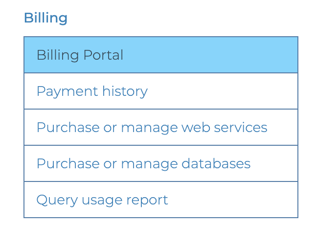
This feature is restricted to admin users and standard users with billing permission.
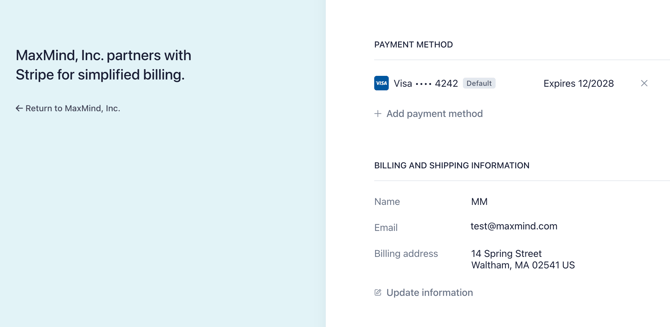
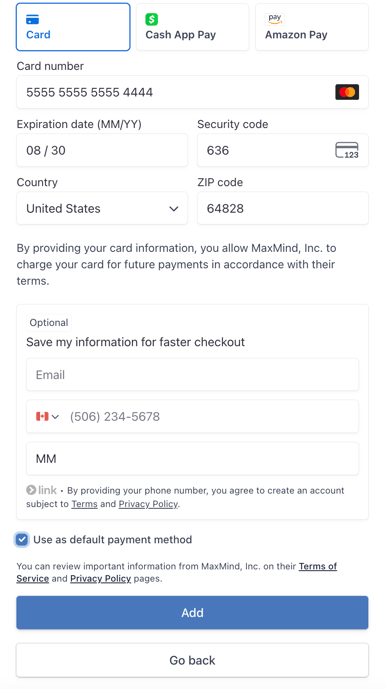
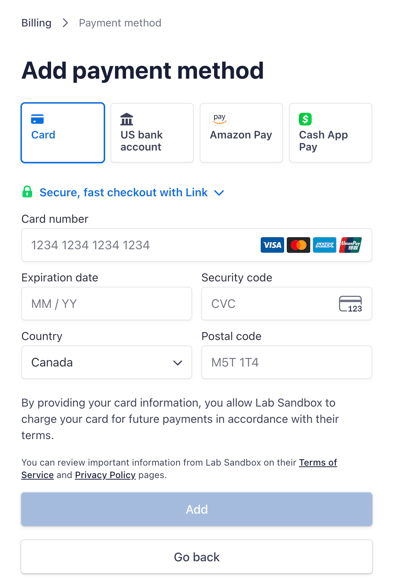
To add a new payment method, click '+ Add payment method'. If you don't wish to make this new payment method the default, please make sure to uncheck the 'Use as default payment method' checkbox.
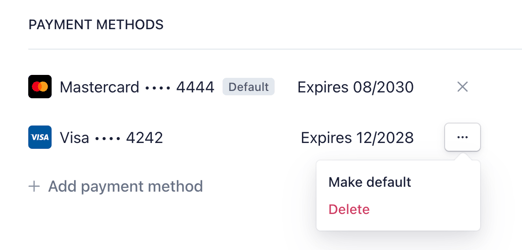
You can change which payment method is the default payment at any time by clicking the three dots next to a payment method and selecting 'Make default'.
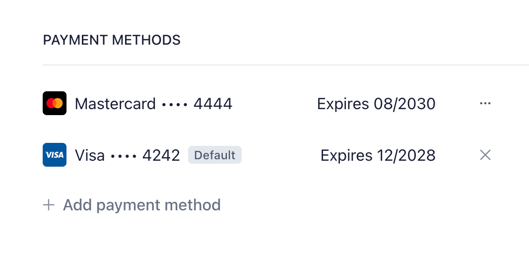
The default payment method will be charged for recurring database subscriptions and web service auto-recharges, if these are set up. We recommend adding at least one backup payment method to avoid service interruptions. This backup payment method will be charged if your default primary payment method fails. You can add more than one backup payment method. We will charge the most recently added payment method first. Learn more about managing your subscriptions or setting up auto-recharge.
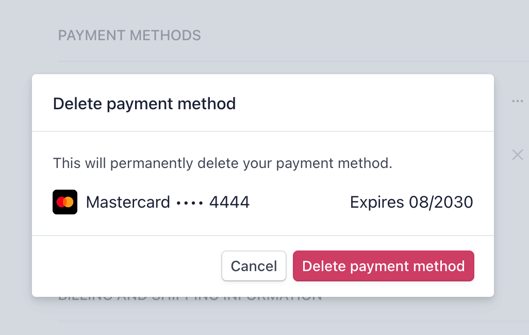
To delete a payment method, you can either click the 'X' next to them (if they are the default payment method) or click the three dots next to a non-default payment method and selecting 'Delete'.
Click "Delete payment method' to confirm deletion, or 'Cancel' to cancel.
If you would like to modify the payment method or add an additional payment method, click on ‘Payment Method’ under the Account menu in your account portal [direct link, login required]. This feature is restricted to admin users and standard users with billing permission.
Using Link by Stripe as your payment method
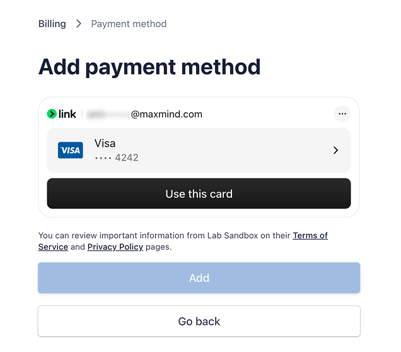
Link by Stripe is a digital wallet and one-click checkout system that allows you to securely save your payment information (credit/debit cards, bank accounts) and shipping details. If you have previously made purchases on other websites with Link, you may see your Link information already displayed.
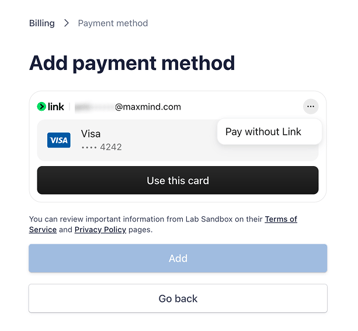
If you do not wish to use Link as your payment method, click the three dots next to your Link payment information.
Click the 'Pay without Link' dropdown to toggle additional payment methods.
Using PayPal as your payment method
We do not accept PayPal for new payments.
If you are currently using PayPal as your payment method, you will need to add your payment method again as described above in this article.
If you do not re-add your payment method, you will be unable to purchase additional web services credit or renew subscriptions.