
You can view, renew, or modify your database subscriptions at any time through your account portal. Learn how to:
- access your subscriptions through the account portal
- switch from one-time updates to a subscription
- purchase a one-time update to a database
- purchase a new database
- cancel a database subscription
Access database subscriptions through the account portal
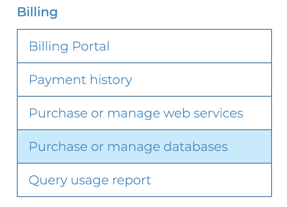
Click on ‘Purchase or Manage Databases’ in the Billing menu of your account portal [direct link, login required]. This feature is restricted to admin users or standard users with billing permission. Learn more about user permissions.
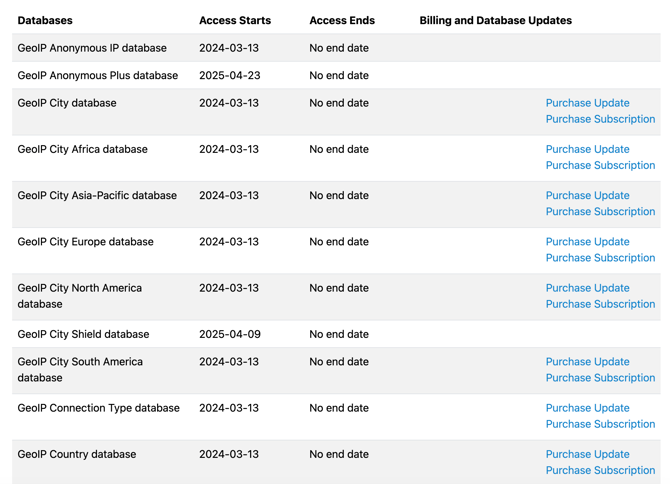
You will see a list of all databases that you have purchased, the time period in which you have access to the database, and links to modify your database subscriptions.
Switch from one-time updates to a subscription
Depending on your payment method, it may be possible for you to switch from pay-as-you-go to an automatic renewal. To do so, click ‘Purchase Subscription’ and choose whether you would like a monthly or annual subscription. Your new subscription will be added to the end of any current term of access. For example, if you buy a yearly subscription and you have one month left of database access, you will now have thirteen months of database access.

Click on 'Add to Order' to finish purchasing your subscription.
Purchase a one-time update
You can also purchase a one-time update to a database. Click on ‘Purchase Update’ to purchase an update without a subscription. A one-time database update gives you one month of access to the database.
Purchase a new database
If you would like to purchase a database that you have not previously purchased, you can make the purchase through our main website. Login to your account, then select the database you would like to purchase from our main website and proceed with checkout. Go to the product pages on our main website to make a purchase.
Cancel a database subscription
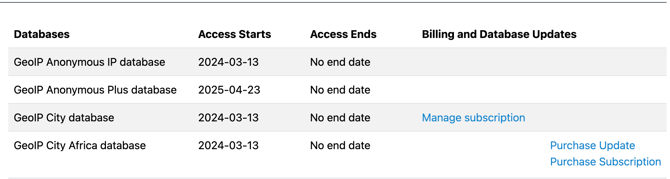
To cancel a database subscription, click on the ‘Manage subscription’ link.
When you cancel your subscription, you will still be able to download the database for the remainder of the subscription term, but you will not automatically renew your subscription.
To finish cancelling your subscription, click 'Cancel subscription', then click 'Cancel subscription' again to confirm cancellation. You will be able to access your subscription until the end of your billing period.


Until the end of your billing period, you will have the option to resume (renew) your subscription. To renew your subscription, click on 'Billing Portal' in the Billing menu to view your subscriptions.
Click 'Don't cancel subscription' and then click 'Renew subscription' to renew your subscription.

